 Image Markup Tool HelpImage Markup Tool Help
The Image Markup Tool is primarily a TEI authoring tool. Many tools exist for marking up text in XML. However, for a number of our projects, we need to be able to mark up images -- by which I mean that we need to be able to describe and annotate images, and store the resulting data in TEI XML files. For this, relatively few tools exist, and those that do are either rather too complicated for novices not expert at markup (for example the Edition Production Technology) or use a proprietary file format (such as INote). Our aim is to produce a tool which creates conformant TEI P5 XML files, but which has a simple enough interface that it can be used by people with little or no experience in editing XML code.
These are some basic concepts you'll need to understand before working with the tool:
The program has two windows which are normall both open when you're working. On one side is the image window. This is the primary window in which the image on which you're working appears. It also has the main menus and toolbar buttons, used for loading and saving files, and so on. The image itself appears in the centre of the window, and you can easily zoom in and out of it using the zoom combo box at the top left of the screen, or your mouse scrollwheel. When you add a new annotation to the image, a square box will appear in the centre, and you can move and resize this to frame the area of the image you want to annotate. See the Image Window help topic for more details.
The second window is the annotation window. This is where you type the text for annotations, as well as assigning them to categories. See the Annotation Window help topic for more information.
An annotation consists of:
See the Annotations and Categories Help topics for more detailed explanations.
When you have added annotations to the image, you can save the results as a TEI P5 XML file. You can also create a DocBook 5 file, or an interactive Web page.
To upgrade to a newer version of the program, we recommend uninstalling your previous version before installing the newer version. Sometimes the program folder structure changes, and any old files left behind may cause problems for the new installation.
Occasionally, when you start the Image Markup Tool, it will prompt you to check for any updates (if you haven't checked in the last month or so). If you agree, the program will send your Web browser to the Image Markup Tool website, and show you a list of any updates, bugfixes or changes that have been added to the application since your current version was released. If there is a new version, you can download and install it from the site. If you don't have enough privileges on your computer to install software, then you could print the page to pass to your system administrators, or send them the URL. We recommend that you keep the IMT up to date if you can. You can also check for updates at any time using the link on the Help menu.
The Image Markup Tool is distributed as a self-extracting installer setup_imt_XXXX.exe, where XXXX represents the version number. To install the program, simply run the file by double-clicking it. The installer gives you the option of installing all the program source code; you would only want to do this if you are a Delphi programmer thinking about contributing to the project.
Starting with version 1.7.2.4, the program also gives you the option of two types of installation: "Normal (hard drive) install", and "Portable (thumb drive) install". In most cases, if you're installing to the hard drive of a computer, just use the default "Normal" install. If you are installing the application onto a thumb drive, you can choose the "Portable" option. In both cases, the installation is basically the same; the difference is in how the program is run.
The "portable" install is designed to be used on a thumb drive or other removable drive, and its main feature is that settings, window positions, sizes etc. are all saved in the program folder, so that they travel with the drive. In a "normal" install, these settings are saved in the user's Application Data folder. The "portable" option is designed to be compatible with the PortableApps standard 0.9.8 (see the PortableApps website for more information). If you install the program to the PortableApps folder on a thumb drive, the PortableApps menu will automatically find it. However, regardless of which install type you chose when installing the program, you can still run the program in either mode.
The Image Markup Tool executable (program) file is located in the [Application folder]\App\bin directory. It's called ImgMarkupTool.exe. If you double-click or run this file, the program will run in "normal" mode, and will save all settings to your Application Data folder (normally in c:\Documents and Settings\[username]).
There are two ways to run the program in portable mode:
To uninstall the program, use the Windows Add/Remove Programs Control Panel applet. As an alternative, you can find the uninstall program and run it yourself. In the case of a "Normal" installation, the uninstaller will be located in the Image Markup Tool's program folder; in the case of a "Portable" installation, you'll find it in the /App/bin subfolder.
Occasionally, when you start the Image Markup Tool, it will prompt you to check for any updates (if you haven't checked in the last month or so). If you agree, the program will send your Web browser to the Image Markup Tool website, and show you a list of any updates, bugfixes or changes that have been added to the application since your current version was released. If there is a new version, you can download and install it from the site. If you don't have enough privileges on your computer to install software, then you could print the page to pass to your system administrators, or send them the URL. We recommend that you keep the IMT up to date if you can. You can also check for updates at any time using the link on the Help menu.
The following changes were introduced in version 1.8.0.0:
The following changes were introduced in version 1.7.2:
The following changes were introduced in version 1.7.1:
The following changes were introduced in version 1.7:
The following changes were introduced between version 1.3 and version 1.6:
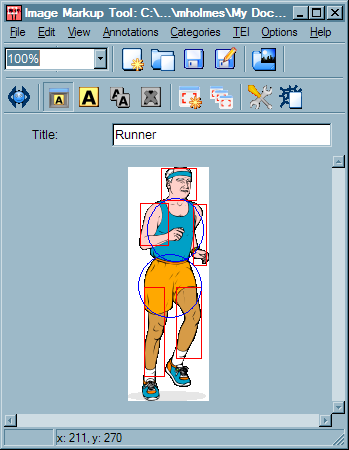
The menu bar in the main screen provides access to virtually all of the program's functionality.
The zoom control allows you to zoom in and out of the image by selecting from the drop-down list of zoom levels, or typing a percentage into the box yourself. You can also zoom in and out of the image by holding down the Control key and using the scrollwheel on your mouse.
These are standard commands for loading and saving files. The File menu gives you an additional option not available on the toolbar: New (with same categories), which preserves the categories in your project, but clears the image and annotations. This is useful if you're marking up many images using the same category system.
This command allows you to load an image into the program, preserving the existing annotations and categories. This can be useful if you are annotating two very similar images, or if you have modified the image itself a little, but want to retain the work you have done so far.
The teiHeader command allows you to view and edit the XML code in the teiHeader section of the file you are creating. A simple header is created automatically, based on the image you load and the title you assign to it, but you may need to add more information to the header manually.
This button controls the display of the annotation window; when it's pushed down, the annotation window is visible, and when it's up, the annotation window is hidden.
There are three annotation commands. The first button adds a new annotation area to the image, in the centre; you can then drag it to the right size and position, and add the annotation text in the annotation window. The second button clones an existing annotation; that is, it makes an exact copy of the currently-selected annotation, with the same category, title and text, and positions it a little offset from the original. This is useful if you need to add many very similar annotations. The third button deletes the selected annotation (after asking you to confirm that you want to do that).
The two category buttons allow you to create a new category, or view the Category Manager window to do more detailed work on your categories. See Categories for more information on this topic.
This pops up a Settings dialog box where you can configure a few options, including setting the size for the image which will be used when creating a Web view.
The Image Markup Tool comes with a built-in system for creating a simple interactive Web page based on your annotated image. This button allows you to create and save your document in the Web view format. See Creating a Web view for more information.
The status bar shows the current location of the cursor on the image.
Here you can see the image being annotated, and a number of annotation areas. There are two categories of annotation area visible in this example: the blue ellipses refer to articles of clothing, and the red rectangles mark out parts of the body. The currently-selected annotation has resizing handles on it. Click on an annotation area to select it for editing or resizing.
If you have a mousewheel, you can easily use it for navigating around the image:
The mousewheel alone scrolls up and down.
Shift + mousewheel scrolls left and right.
Control + mousewheel zooms in and out of the image.
Add a title for your document here.

There are three annotation commands. The first button adds a new annotation area to the image, in the centre; you can then drag it to the right size and position, and add the annotation text in the annotation window. The second button clones an existing annotation; that is, it makes an exact copy of the currently-selected annotation, with the same category, title and text, and positions it a little offset from the original. This is useful if you need to add many very similar annotations. The third button deletes the selected annotation (after asking you to confirm that you want to do that).
The two category buttons allow you to create a new category, or view the Category Manager window to do more detailed work on your categories. See Categories for more information on this topic.
This button launches the category editing screen, enabling you to edit the properties of the category which is currently selected on the left. See Categories for more information on this topic.
These buttons determine which annotations are shown in the annotation list box on the right. If the All button is pressed down, then all the annotations are visible; if any other button is selected, then only the annotations in that category are visible. You can right-click on these buttons to access commands which allow you to edit the properties of individual categories. See Categories for more information on this topic.
The annotation list shows all the annotations in the category selected on the left (or all the annotations in the project, if the All button is selected). The annotation titles show in the list; clicking on one of them will select the annotation area in the main image window, and will show the annotation text for editing in the bottom half of this screen. Checking or unchecking the checkbox next to an individual annotation causes the coloured shape for that annotation to be displayed or hidden in the image window. Sometime you may wish to hide an annotation in order to access another annotation behind it. You can hide or show the entire category of annotations using the checkbox above the list. This can be handy when you're working on a complicated project with lots of annotations. Finally, you can re-order the annotations in the list using the up/down arrow buttons on the right of the list.
Each annotation belongs to a category, and you can assign the category using this drop-down box. When you first add an annotation, it will be assigned to the category which is currently active/selected at the top right. You can also add new categories from this drop-down by selecting the first option. See Categories for more information on this topic
Type a title for your annotation in this box. This will be wrapped in a TEI <head> tag, so you can add any tags allowed in this context in the title if you wish.
Type the text for your annotation in here. The text must be a well-formed XML fragment, using TEI block elements (usually <p> tags). You can type multiple <p> tags, but all text must be enclosed in an appropriate tag. Inside the <p> tags you can add any code which is allowed by the TEI P5 schema.
Press OK to accept and store changes to your annotation, or Cancel to abandon changes and revert to the previous stored data. Note that these buttons do not save anything to a disk file; they simply store the data in memory. Save your file using the appropriate menu controls in the image window.
Normally, the Image Markup Tool automatically assigns xml:id attributes to each <zone> element representing an annotation area in your document. However, you can override this and provide your own value for the xml:id attribute using the ID... button. If you hold your mouse over the button, a tooltip will appear showing you the current value for the xml:id attribute. Click on the button to enter a new value. Remember that the new value must be a valid xml:id string, and it must also be unique in the document, otherwise it will not be accepted.
If you don't understand what any of this means, then you don't have to worry about it. The program will manage the xml:id attributes in the document for you.
An annotation consists of:
Categories are a key concept in the Image Markup Tool. The basic idea is that most annotation projects will involve adding many annotations to the image, and these annotations will have a variety of purposes and types. For instance, if you are annotating a historical engraving, some of your annotations may serve to transcribe or translate the text on the engraving, while others may identify individuals or objects in the picture. It is helpful to sort annotations into different categories, because we can then easily hide and show whole sets of annotations inside the Image Markup Tool environment, and in output we can distinguish visually between different types of annotation.
When you start a markup project, therefore, it's a good idea to create some categories right at the beginning. This process will help you to imagine the different types of annotation you may be adding to the image, and to organize your ideas about the project. You can always add, delete and modify categories at any time, of course.

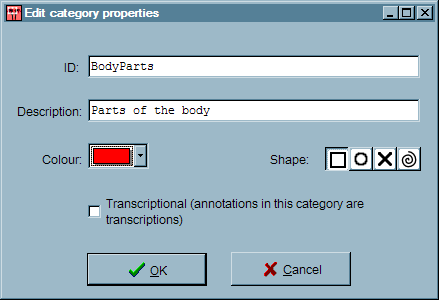
On the toolbars of both the image window and the annotation window, you'll see two buttons which relate to categories. If you click on the first button, to create a new category, you'll see the category properties dialog box. It has four settings:
Clicking on the second of the two buttons will show the category management dialog box:

This simple dialog box allows you to add, edit and delete categories, as well as changing their order. The order may be important for presentation reasons (for instance, it may control the order in which they are listed in an output format such as the Web view).
The Image Markup Tool has full support for Unicode. It also provides syntax highlighting for XML code in two text boxes, the Annotation Text box and the teiHeader box. Syntax highlighting is provided through the UniSynEdit Delphi component, which functions best with monospaced (fixed pitch) fonts. We therefore recommend that you choose a monospaced font for editing. The font used for edit boxes is selected in the Preferences dialog box, in the second drop-down list. Here are some suggestions for suitable monospaced Unicode fonts:
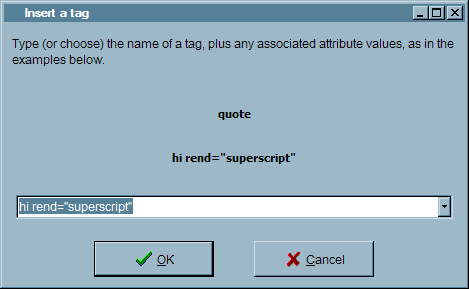
Press OK to create and insert your tag in the current editing text box.
Press Cancel to close this dialog box without inserting an XML tag.
You can type your tag into the combo box, or, if you have already used the same tag, you can select it from the drop-down list. Look at the examples above to see how to insert your tag. It should be either the plain tag name, or the tag name followed by any attributes and their values that you want to include in the open tag.
Here are two examples showing how to type your tag into the combo box below.
When you're editing XML code in (for instance) the Annotation Text box, or the teiHeader window, you'll find you want to insert XML tags . You can do this by pressing Control + E (or choosing the appropriate entry on the Edit menu). If you want to place your tag around some text, select the text before doing this.
When this dialog box appears, type or choose the tag you want to insert, as explained below, and press OK to insert the tag.
Let's say you've loaded an image into the program, and added lots of annotations and categories. What now? What use is this file?
Well, in one sense that's none of our business; you have a TEI P5 XML file, and that's all the program is designed to produce. What you do with it is up to you. But we do have some suggestions:
The "native" file format of the Image Markup Tool is TEI P5 XML. The schema was created using the TEI's ROMA schema-generation tool, and it incorporates a lot of optional modules; for full details, consult the ODD file in the schemas folder of the Image Markup Tool program folder (see below).
The most common schema format used for TEI documents is RelaxNG. Early versions the Image Markup Tool used XML Schema (XSD) files rather than RelaxNG, because XML provides a standard method of linking an XML document to an XSD schema, through an xsi:schemaLocation attribute on the root node. However, using XSD files proved problematic, for a variety of reasons. Therefore, beginning with version 1.5 of the Image Markup Tool, a RelaxNG schema has been used. The current filename is imt_1_8.rng. You can find a copy of the schema file in the schemas folder inside the Image Markup Tool program folder (along with imt_1_8.odd, the ODD file used to generate the schema from ROMA).
The IMT uses two non-standard but widely-used linking mechanisms to its XML files:
In addition to the TEI format, the Image Markup Tool can also export to DocBook. On the File menu, you'll find Export to DocBook (v5). Please note that this is not an exhaustive or detailed conversion between TEI and DocBook; only some core elements are handled. The main purpose of this functionality is to allow the Image Markup Tool to be used for the process of documenting software and Web applications by creating annotated screenshots in DocBook format. (This Help file, for instance, was created partly with the Image Markup Tool, and rendered from DocBook into HTML using XSLT). There is a similar Import a DocBook file command, but it will only successfully import a DocBook file exported from within the Image Markup Tool. The import/export of DocBook files is accomplished using XSLT conversions. You will find the two XSLT files used for the conversion in the docbook folder inside the Image Markup Tool program folder.
Once you have created a TEI file marking up an image, what can you do with it? One option is to create a Web-based interactive version which allows people to view the image and access the annotations you have created. This is not a simple task; it would normally involve writing some XSLT to convert the TEI XML file to XHTML, along with some CSS and ECMAScript to display it properly and make it interactive.
The Image Markup Tool can do some of this work for you. On the File menu, you'll find the command Create Web view. Click on this, and you'll be asked to supply a filename, and then the program will create a set of output files for you. These are named as follows, based on the original file name of your XML file, and the original image file name. For example, if you choose the filename junk.htm, and your project contains markup of an image file called pic.jpg, then these are the files that will be created:
These four files constitute a Web page which displays the image and its annotations in an interactive format. Two other files are also produced:
The XML and XSL files are actually used in an XSLT transformation performed by the program in order to produce the HTML file, so if you want to modify the output, you have access to the XSLT and the XML as well as the HTML, JavaScript and CSS files.
This web view is intended as a simple way of proofing your data, as an example of the type of output you might create for the Web, or as the basis for your own customized Web page. It is not intended as any kind of "final product". You can see an example of the Web view output in the tutorial (click on Help / Getting started).
If you click on Options / Settings menu command, you'll see the Settings dialog box, which contains the Web view preferences group box. Currently, this has only one option, a maximum width in pixels for the image shown in the Web page. In the future, more options may be added.
You can also create a zip package containing all of these files, bundled together for convenience, by clicking on Create Web view zip package on the File menu.
When you create a marked-up image, several documents are actually involved. There is the image file itself; then there's the XML file containing the markup/annotation information you've created for the image; and finally, there are the schemas which document and validate the XML file. (The Image Markup Tool uses a RelaxNG schema file. You'll find it in the schemas folder in the IMT program folder.) Often, you will not need to worry about the schemas; much that is done with XML files (such as transforming them with XSLT or querying them with XQuery) doesn't require the use of a schema. Nevertheless, it's sometimes useful to keep the XML document, the image file, and the schema in a single package for convenience, portability, and archiving.
The program provides a simple way to do this. On the File menu, you'll find the command Create a zip package. When you click on this, you'll see a save dialog box where you can specify the name and location of your zip file; then the program will build a zip archive which incorporates the image, the XML file, and a copy of the schema. In the process, if necessary, it will adjust the link which points from the XML file to the image file, such that if the zip file is extracted (placing all its contents in one folder), the XML file will point correctly at the image file.
Sometimes, when you're working on a large image, it can be useful to save thumbnail versions of the whole image, or of parts of the image. You can do this with the command Create thumbnail on the File menu.
When you click on this command, you'll see this dialog box appear.
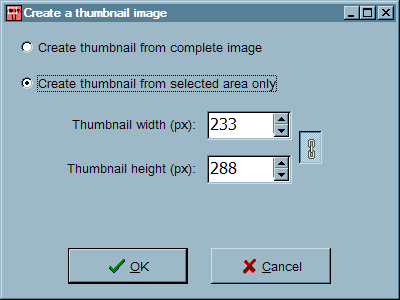
If an annotation area was selected when you invoked the command, then you'll be able to choose between creating a thumbnail from the complete image, or from only the annotation area which is selected. If no annotation area was selected, then only the first option will be available. You can choose the width and height of the output image, and if you want to stretch or squash the thumbnail, you can click on the "chain" button to unlink the width and height. When you're happy with the thumbnail size, press OK, and save the image.
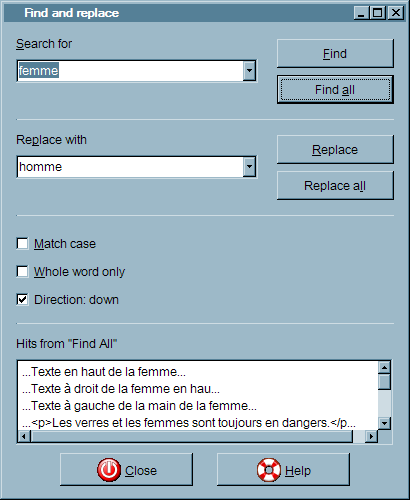
Find the next instance of the search text, starting from the cursor position in the currently-focused window.
Find all instances of the search text in the document, and list them in the list box at the bottom of the window.
Click this to find the next instance of the search text in the document, and replace it with the replace text.
This will replace all instances of the search text with the replace text, throughout the document (except where the change would result in ill-formed XML fragments). This operation cannot be undone, so you might want to save your document first!
Type the text you want to find in here. The program will remember the last few things you searched for, even when you close it down and restart it.
This text will be used to replace the search text in a Replace or Replace all operation.
Set these checkboxes to control the way the search operation works.
When you do a "Find all" operation, all hits are listed in this box as one-line extracts from the document. You can double-click any hit to jump to it in the document interface.
The Find and replace dialog box is not modal, but it does stay on top of other windows. You can keep it open while you work in other windows, or you can click on the Close button to hide it when you're not using it.

Sometimes it's handy to make sure you have a copy of the IMT schema file in the same folder as your XML document. If you check this option, a copy of the current IMT schema will be copied automatically alongside the XML file whenever you save.
When you create a Web view, you may have a problem if your image is too large for a normal Web page display. In this case, the IMT can create a smaller version of the image, and use that for the normal Web view display. This control enables you to set the maximum width for the Web page image; if your original image is larger than this, a scaled version will be created to make the Web view more manageable.

The Preferences dialog box enables you to control the environment of the program. You can set the fonts for two different types of element:
You can also choose the length of time for which tooltip hints are displayed, in seconds (set this to zero to turn off tooltips completely), and you can choose between four different sizes for the button images displayed on the application's toolbars. Finally, you can load an interface file to change the entire interface of the program to another language.
Once you have selected your preferences, you can press the Preview button to test out your choices. The interface of the program will be changed according to your selections, but if you decide that you don't like the result, you can simply press the Cancel button to undo the changes.
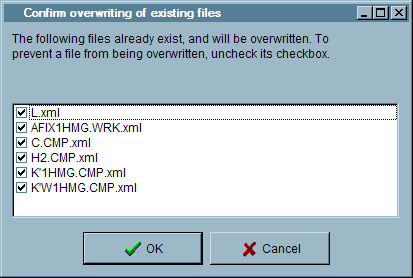
The file overwrite confirmation dialog box should appear whenever you are about to do an operation which involves saving multiple files, where some of those files already exist. Normally, when you save a file to disk, if the file already exists you will see a simple dialog box which asks you whether you want to overwrite it or not. When the operation involves multiple files, a more complex dialog box is needed.
When the dialog appears, it will show all of the files you're about to overwrite in a list, with each one checked. If for some reason you don't want to overwrite a particular file, just uncheck it in the list. Then you can press OK to continue with the operation. If you want to cancel the operation completely, press Cancel.
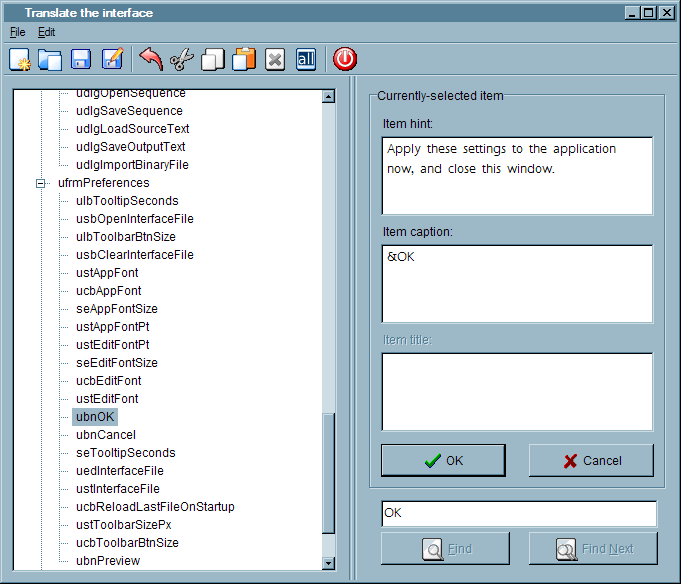
The File and Edit menus give access to the same functions which are available from the toolbar.
Using the file commands on the toolbar and on the File menu, you can create a new translation file, load a previously-saved file, and save the file you're working on at the moment. A translation file is an XML file which contains strings of Unicode text for all the labels, captions, hints and titles in the program.
Standard edit commands are available when you edit text in the text boxes on the right of the screen.
Press this button to close the translation window and return to the main application window.
The tree control on the left of the screen gives you access to the structural hierarchy of the program. Each node in the tree represents one object in the program, such as a form (= a window), a button or a label. Some objects contain other objects (for instance, forms contain buttons and labels), so the structure is hierarchical. These objects are referred to as items. When you click on a node in the tree, if it has translatable text associated with it, the text will appear in the text boxes on the right. There, you can replace it with a translation, then press OK to store your new text.
Not all items in the program hierarchy have text attached to them. Some will have a title but no hint, and others may have a hint but no title. When translating the interface, you only need to enter translations into the boxes which already contain English text.
The hint property of an item is the text which will appear as a tooltip when your mouse hovers over it. For instance, a button in the program may have a short caption such as OK, but if you put your mouse over it you might see a little popup which says "Accept these changes". That text is the hint.
Menus, buttons and other clickable controls have captions. You will see that some captions have an ampersand (&) character in them; the effect of this is to make the following character into a hot key, which is underlined in the caption. For instance, if the caption is &OK, then the button will have the caption OK, and pressing Alt + O on the keyboard will cause the button to be pressed.
A few items, mainly dialog boxes, will have a title attribute which shows up at the top or in the title bar.
When you have made changes to the text in the text boxes above, you can store your results into the tree structure by pressing OK, or revert to the original text by pressing Cancel.
Note that this does not save your changes to a file on the disk; it merely stores them in memory. To save your changes to disk, use the Save commands on the toolbar or the File menu.
If you're searching for a particular piece of text in an item hint, caption or title, you can type it in the text box above the Find button and click on Find or Find Next to search for it.
The Image Markup Tool was coded by Martin Holmes from the University of Victoria Humanities Computing and Media Centre, using Borland Delphi 2005. The program was initially created while working on Dr. Claire Carlin's project, Le mariage sous L'Ancien Régime. Thanks are also due to Syd Bauman, Dot Porter and Conal Tuohy, who have all worked hard to achieve the integration of TEI with image data, on which this project depends; to David Badke and Eric Hasler, who helped in the early phases of development; and to Roberto Rosselli Del Turco, who has provided great help in debugging the application on Linux/Wine. The Italian interface file was contributed by Paolo Cutini, and he has also sent many useful bug reports over the past couple of years. The Lithuanian and Russian interfaces were contributed by Tatjana Radzeviciene. The French interface was provided by Marjorie Burghart (EHESS, France). The Hungarian interface was contributed by Kóta Péter (Medieval Institute of Pázmány Péter Catholic University, Hungary)
The following open-source Delphi libraries and controls are used in the project:
This help file is an XHTML Web page that runs in your browser. If you have a modern, standards-based browser, all its functions should be available; if you have an older browser, or a browser which does not support standards properly, then it may not function so well.
To access the Help file, you can press the F1 key in the application any time; the browser should start up, and the Help file should open, showing the appropriate topic for the area of the application you are using. If there is no particular appropriate topic, it will open at the table of contents.
To search the Help file, you can either look through the Index, or you can use the search capabilities in the browser, by clicking on the Show All button to reveal all the topics, then pressing the appropriate key combination to launch Search in your browser (usually Control + F on Windows).
Cascading Style Sheets is a series of W3C standards defining a simple mechanism for adding style (e.g. fonts, colors, spacing) to Web documents
(W3C). See the CSS home page for more information.
DocBook is an XML markup language designed primarily for creating documentation, manuals and other technical publications. It is an official OASIS standard. You can learn more about DocBook on the DocBook Website.
ECMAScript is the ECMA standard specification for the Web scripting language also known as JavaScript and JScript, which was originally created by Brendan Eich at Netscape. Its most common use is in Web pages, where it is used to manipulate document display and provide interactive functionality for the user. In recent years, however, it has been used in a broader range of applications.
"Open Document Format" is an XML file format used by many office software programs (such as Open Office), to store word-processing, spreadsheet, presentation and other data. It is an open standard developed and maintained by the Organization for the Advancement of Structured Information Standards (OASIS). Version 1.0 of the standard is published as ISO/IEC 26300:2006.
"Preferences" refers to the ability of the user to control aspects of the user interface of the program. Elements such as the fonts used for button captions and edit boxes, toolbar button sizes, and even the language used for user interface captions can be controlled through a Preferences dialog box.
RelaxNG is a schema language for XML. Schema languages are used to create a sort of blueprint for an XML document: a detailed specification of the structure and organization of the document, laying down rules about what elements and attributes are allowed in the document, and where they are allowed to appear. RelaxNG is only one of several schema languages (others include the W3C's XML Schema). RelaxNG is preferred by many for its simplicity and economical syntax. See the RelaxNG Website for more information.
This is the TEI's own self-description from its Website:
The Text Encoding Initiative (TEI) Guidelines are an international and interdisciplinary standard that enables libraries, museums, publishers, and individual scholars to represent a variety of literary and linguistic texts for online research, teaching, and preservation.
The TEI standard is maintained by a Consortium of leading Institutions and Projects worldwide. Information on projects which use the TEI, who is a member, and how to join, can all be found via the links above. Consortium members contribute to its financial stability and elect members to its Council and Board
.
You can learn more at the TEI Website.
P5 is (at the time of writing) the current standard XML format recommended by the TEI. P5 is not a single schema; in fact, it is a set of many modules which can be combined to create a schema or DTD which suits a particular markup project. You can learn more about P5 by reading the TEI Guidelines, and you can generate a P5 schema using the TEI's online schema-creation tool, ROMA.
Tooltips, also called Hints, are helpful messages that pop up in a little square box when you hover the mouse over a component of the program's user interface. They also appear on Web pages, where they are created using the title attribute.
Unicode is a system for encoding every character in every human language, and many other symbols and glyphs, in a single system where each has a unique number. It enables us to create texts in multiple languages without problems of character encoding, and it is independent of system, program, and language. Modern operating systems such as recent versions of Windows (Windows 2000 and XP), OSX, and Linux support Unicode. For more information, see the Unicode consortium page What is Unicode?
XHTML is the descendant of HTML, the original Web markup language. XHTML combines legacy support for HTML tags with a pure XML structure. See the W3C XHTML specifications for more information.
XML Schema is the W3C's standard schema language. Schema languages are used to create a sort of blueprint for an XML document: a detailed specification of the structure and organization of the document, laying down rules about what elements and attributes are allowed in the document, and where they are allowed to appear. XML Schema is generally thought to be more complicated than other alternatives such as RelaxNG, but there are advantages to using it, among them the fact that there is a standard method of linking an XML document directly to its XML schema using an xsi:schemaLocation attribute in the root node of the document. See the W3C's XML Schema page for more information.
A zip file is a convenient way to store multiple files in a single package (called a zip archive). Zip files can contain more than one file, and these files can be arranged in a folder structure similar to that on a computer drive. The zip format also provides the option for non-lossy compression of the files stored in the archive, so it can also be used to reduce data size. For more information on zip archives, see Wikipedia.